Website Viewed
Is a customer viewing a product but not buying it or adding it to their cart? With this trigger, you can reach out to them anyway.You can set up this trigger in Smartflow for the entire website, just a specific URL, or even a specific product, combined with the time spent on the given page or repeated views.
How to set up trigger in SmartFlow
Select a blank Smartflow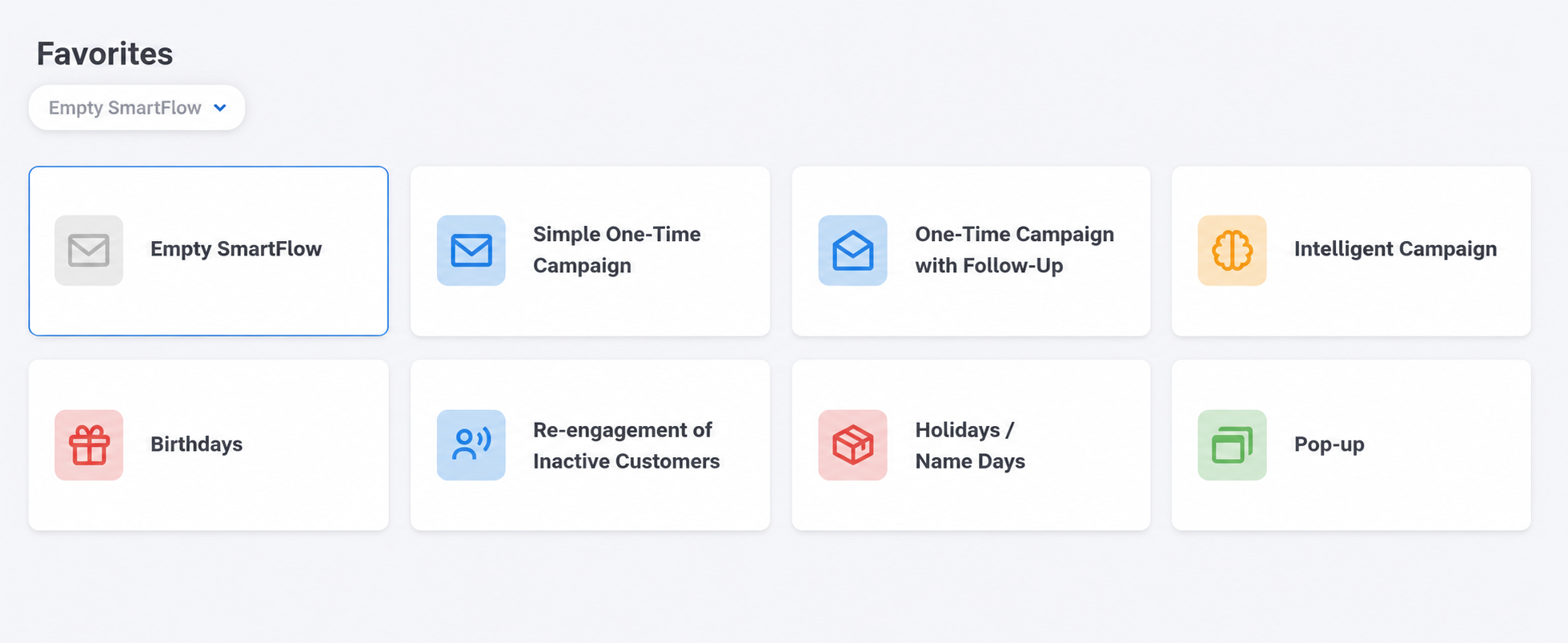
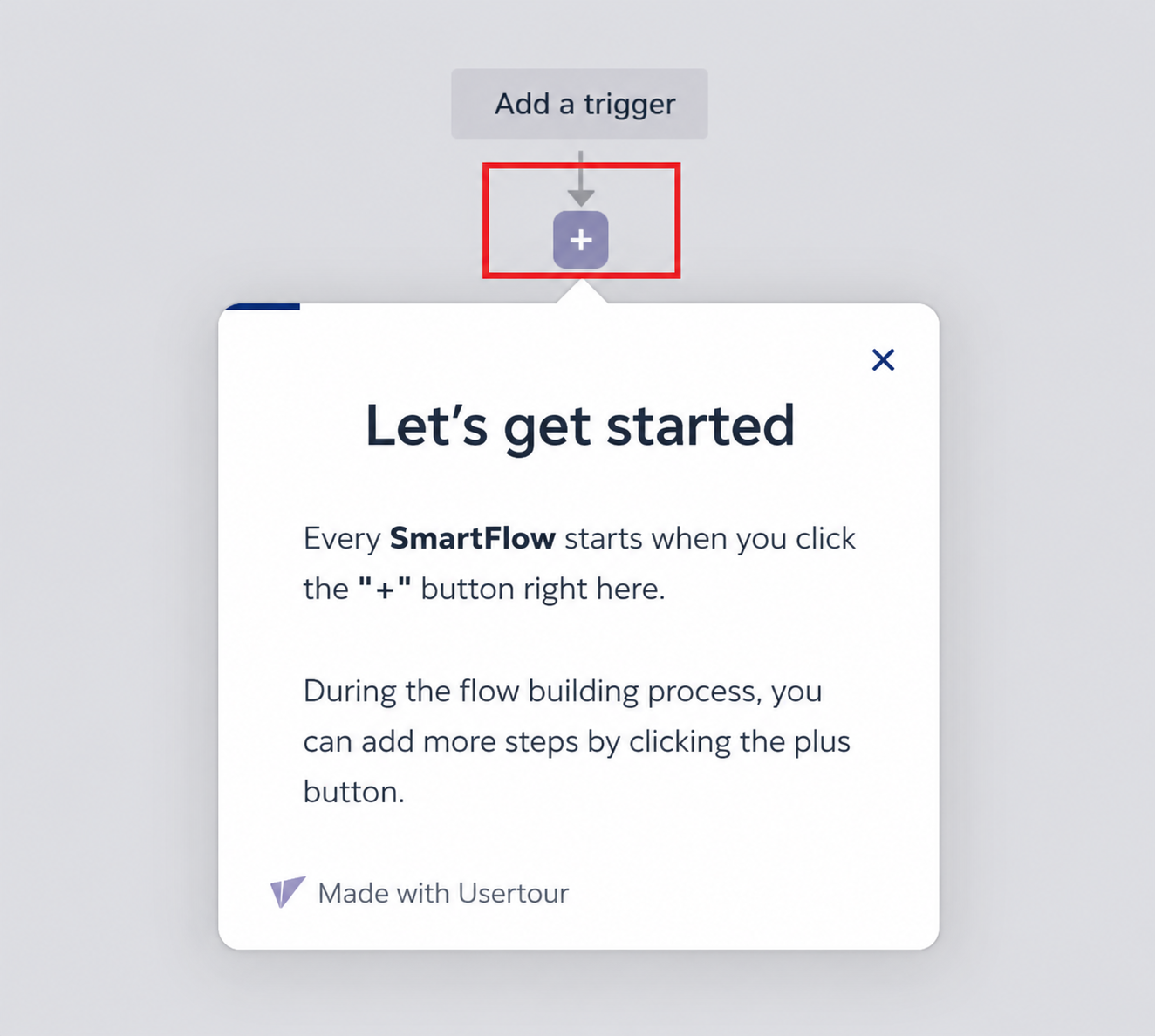
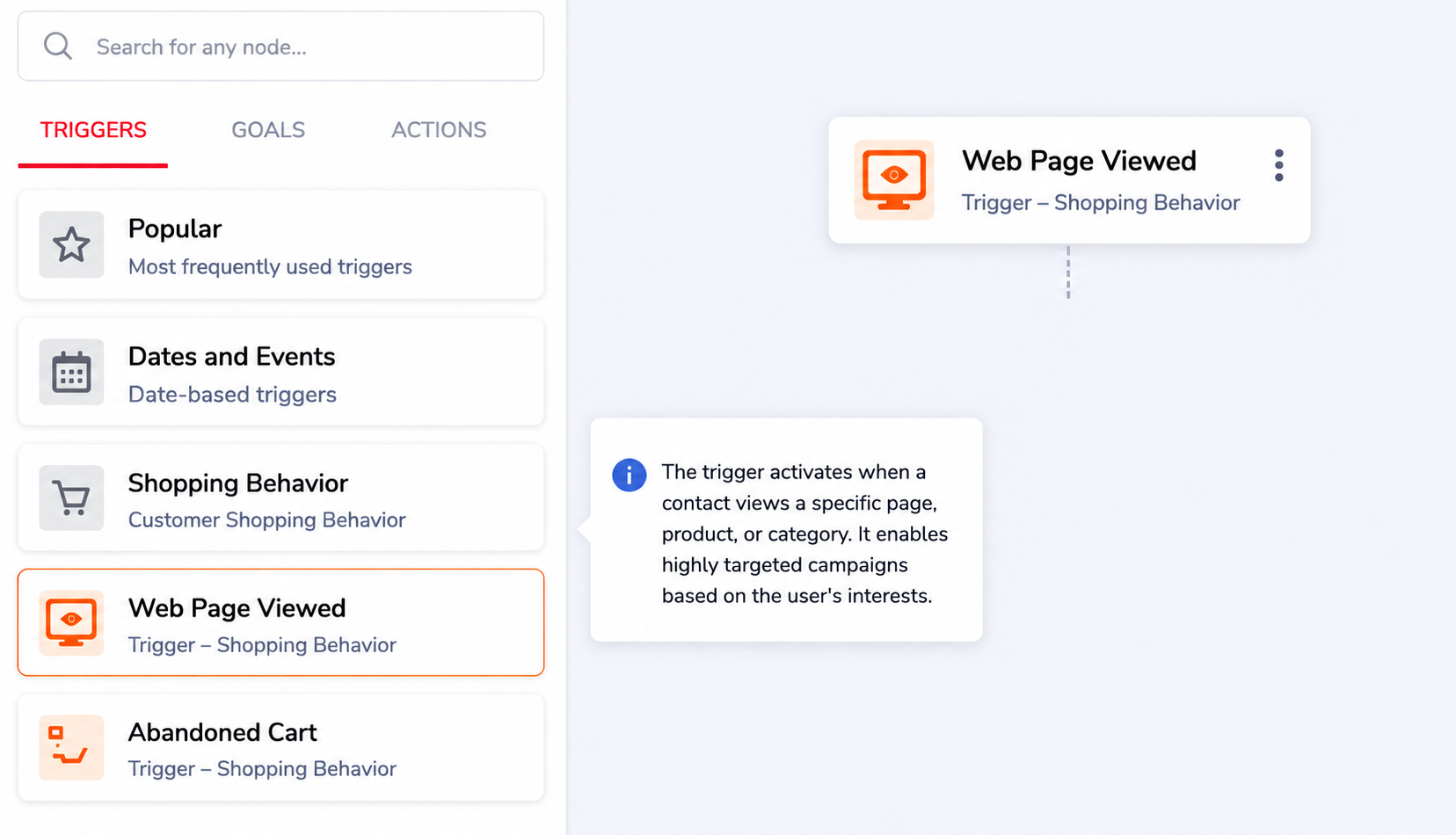
Click the “Website Viewed” block and choose the target for which the email should be sent.
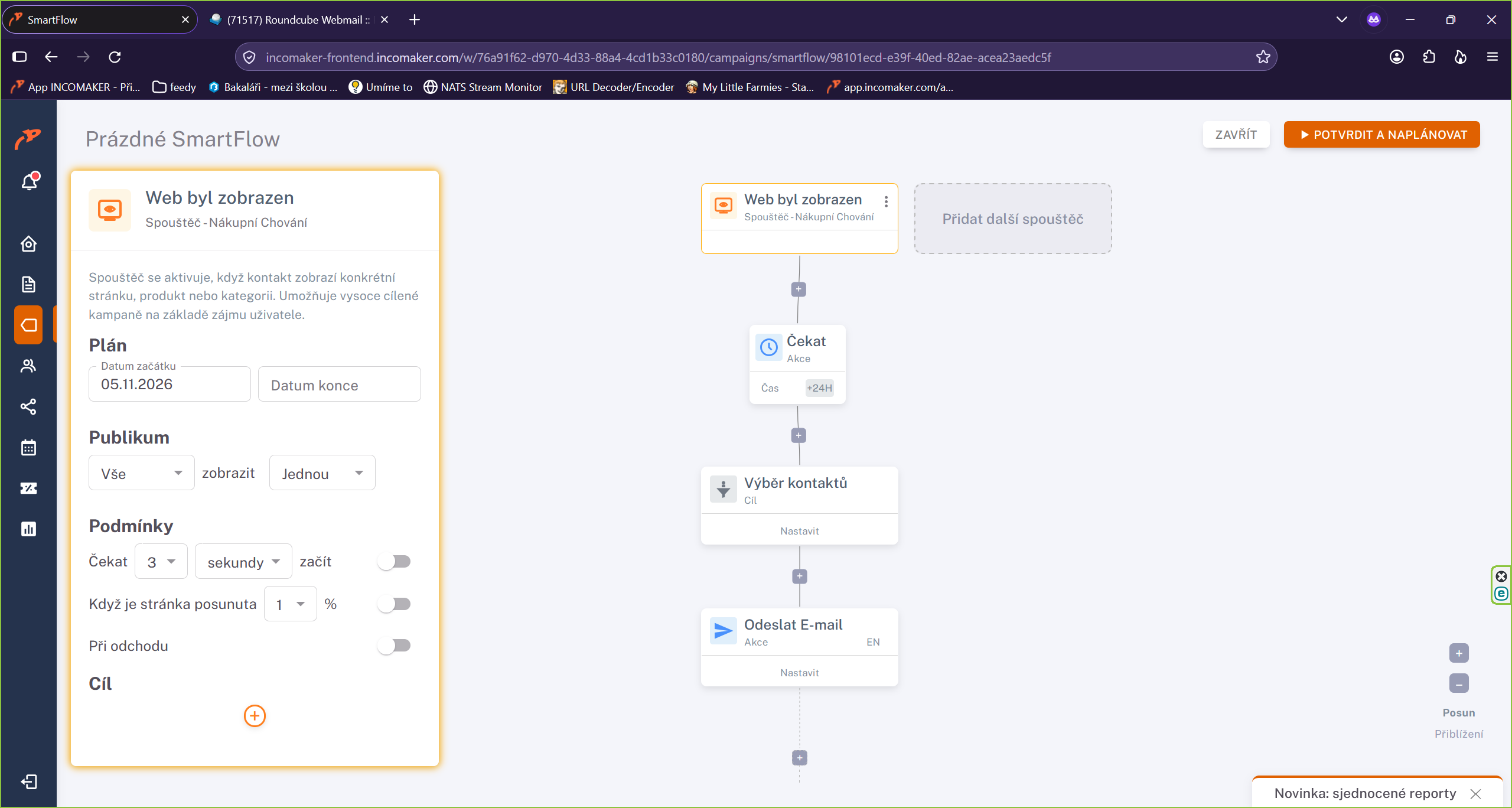
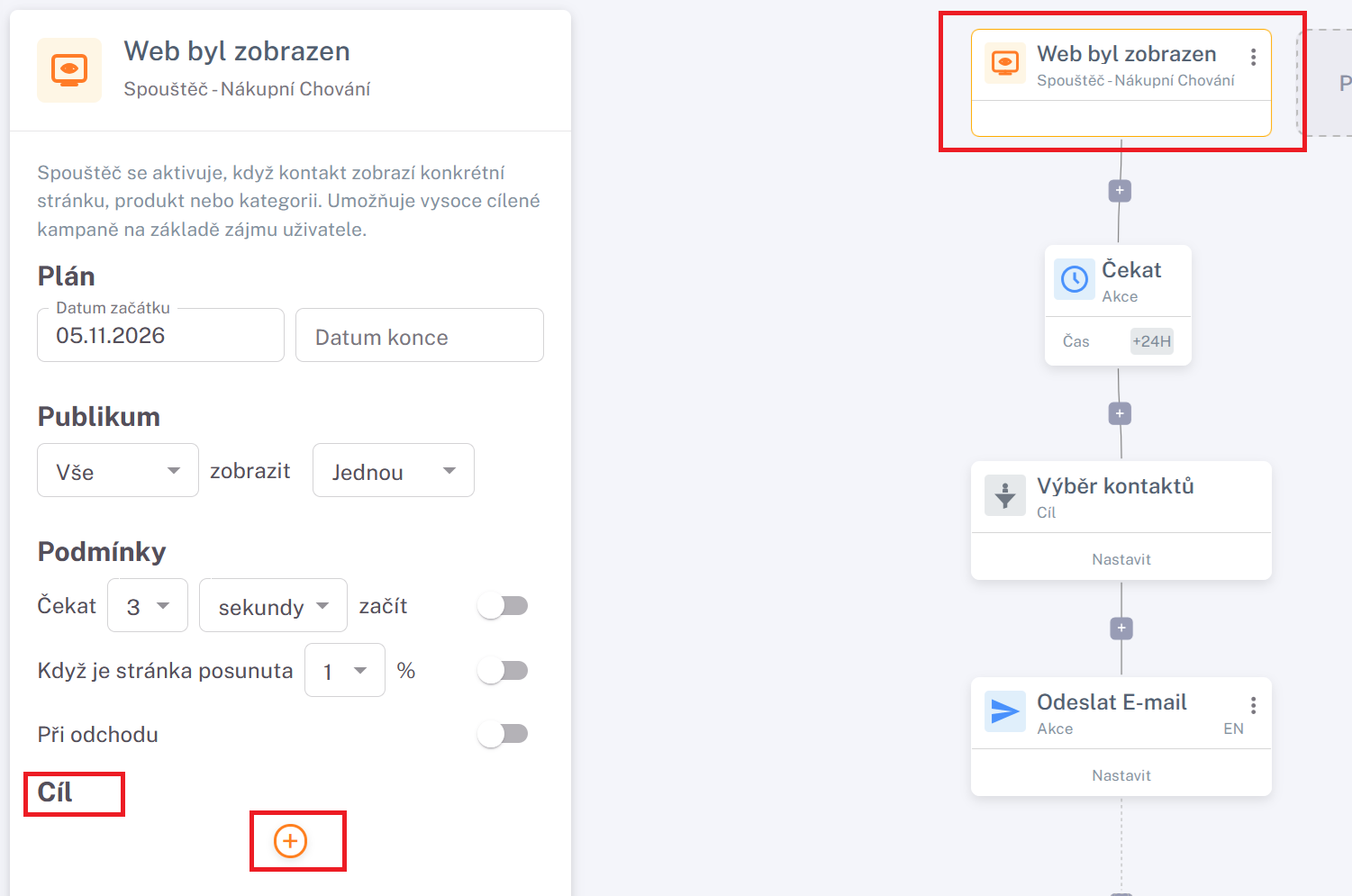
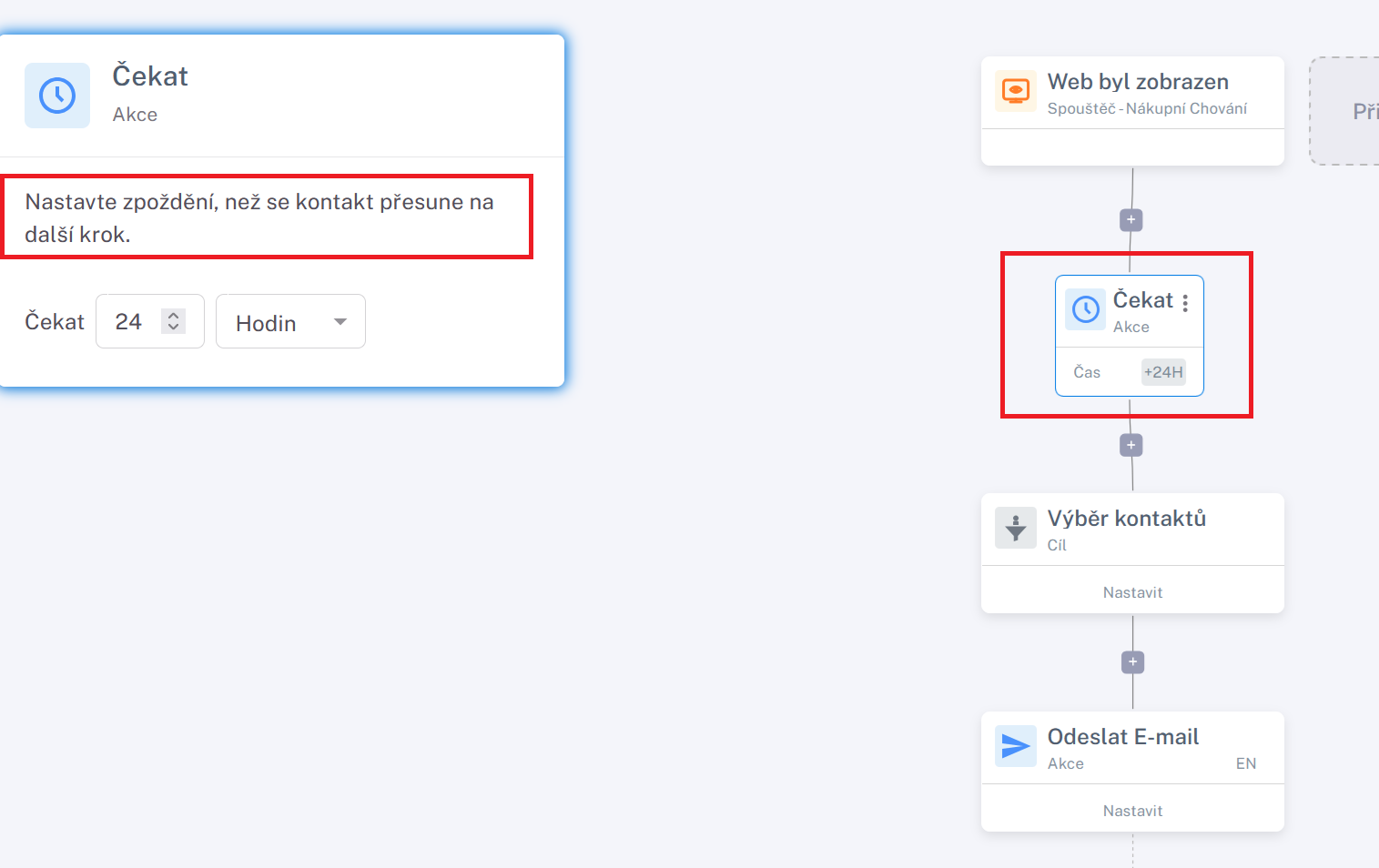
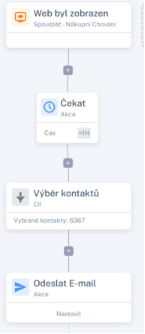
Next, add a Wait block, Select contacts, and then Send email.
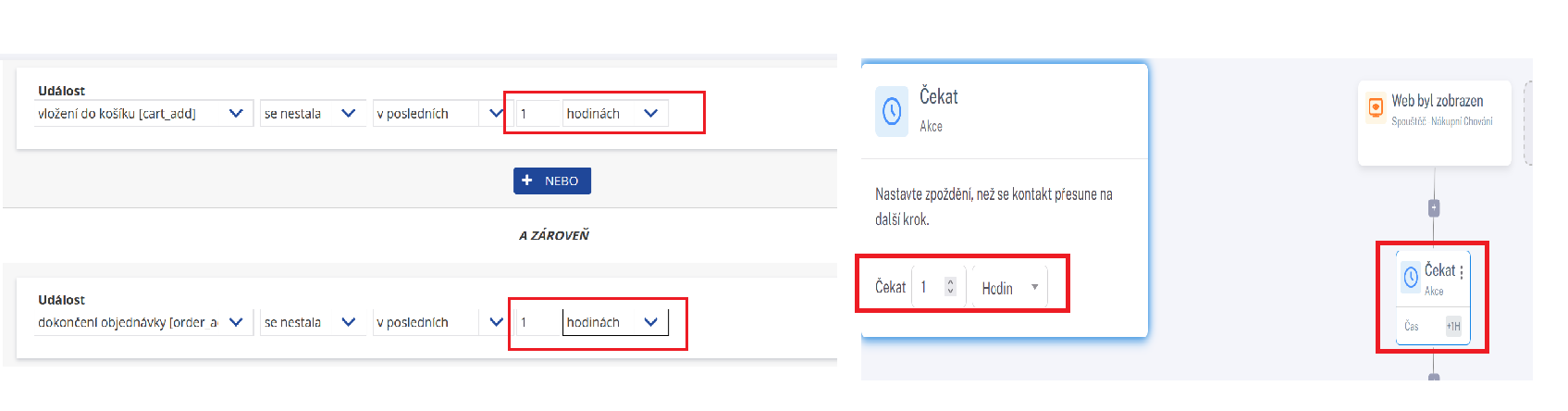
Wait block: Choose how long the campaign should wait before sending the email.
Select contacts block: Set the conditions so that the customer has not added anything to their cart and has not completed a purchase in the last X hours.
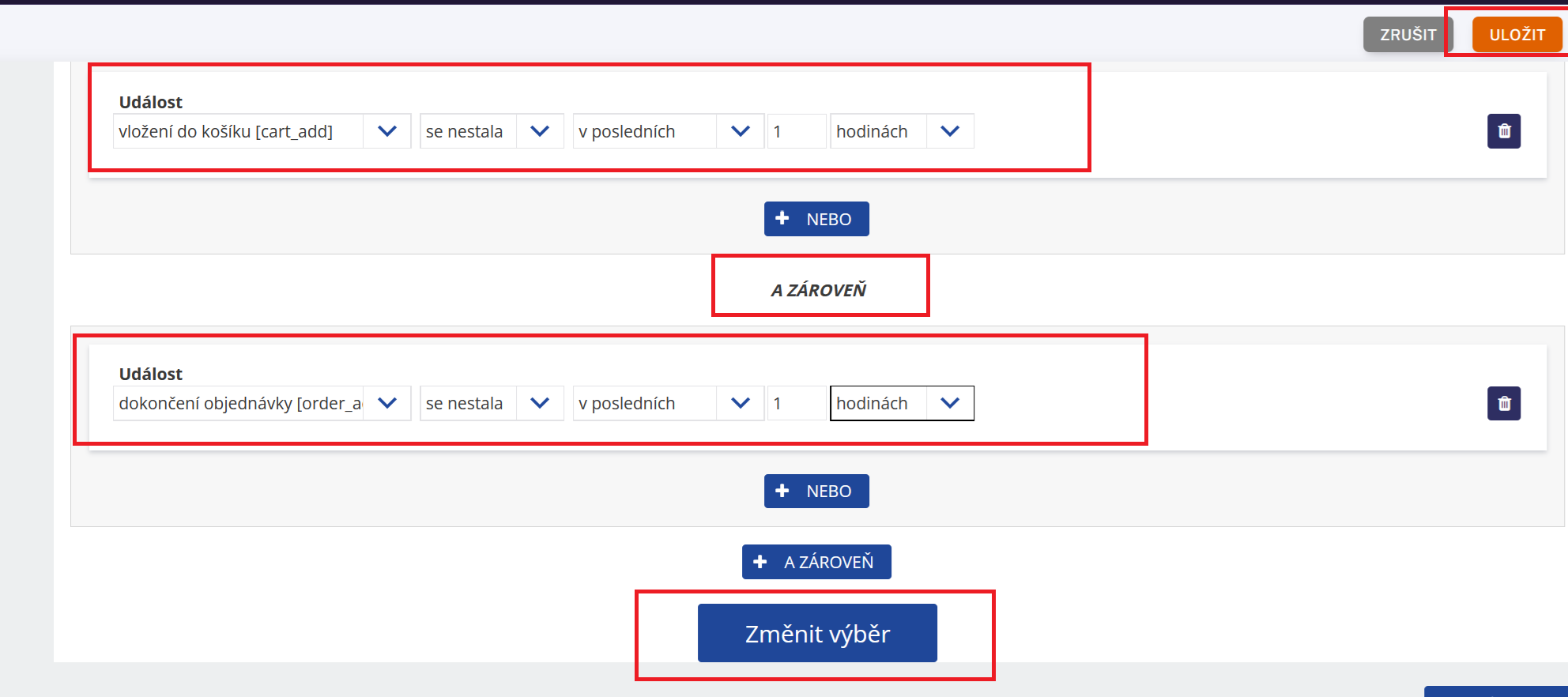
The time interval in the Wait block must match the interval in the Select contacts conditions.
Example scenarios
Simple Smartflow
There is a simple way to reach out to a customer who visits the website, spends a certain amount of time there, or returns repeatedly. Within a single Smartflow, you can actually set up multiple triggers simultaneously.
Sending based on language
If you have a multilingual plugin, you can set everything up within a single Smartflow.
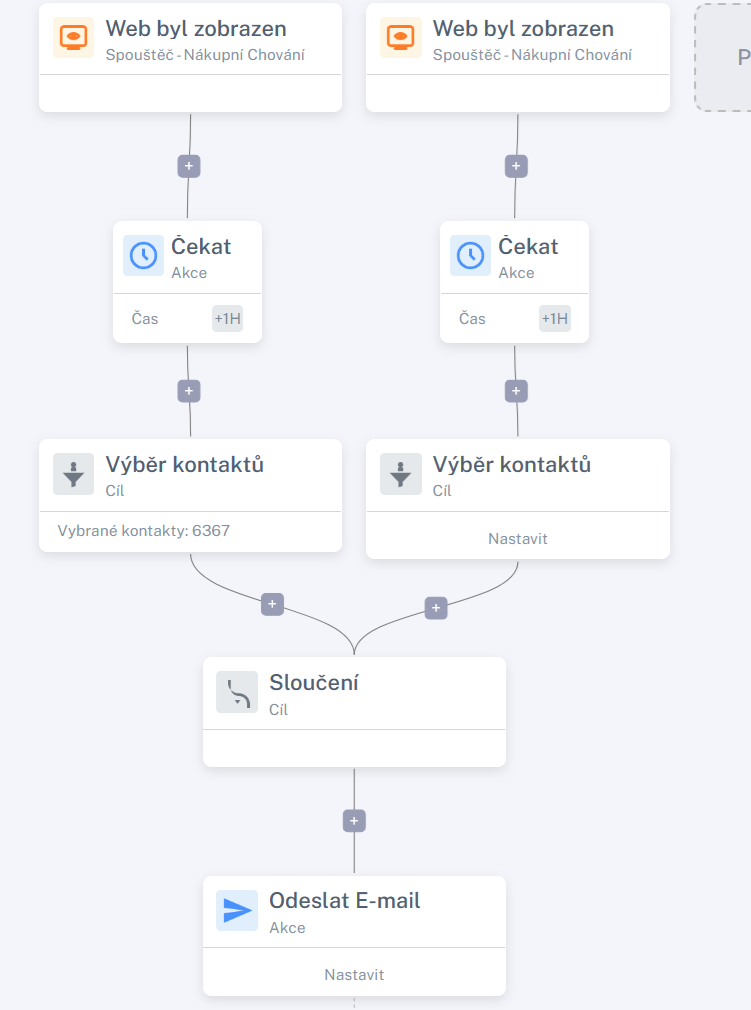
Specific products visited with the same email sent
If customers visit products for which you have set up a Smartflow, you will subsequently reach out to them with the same email.
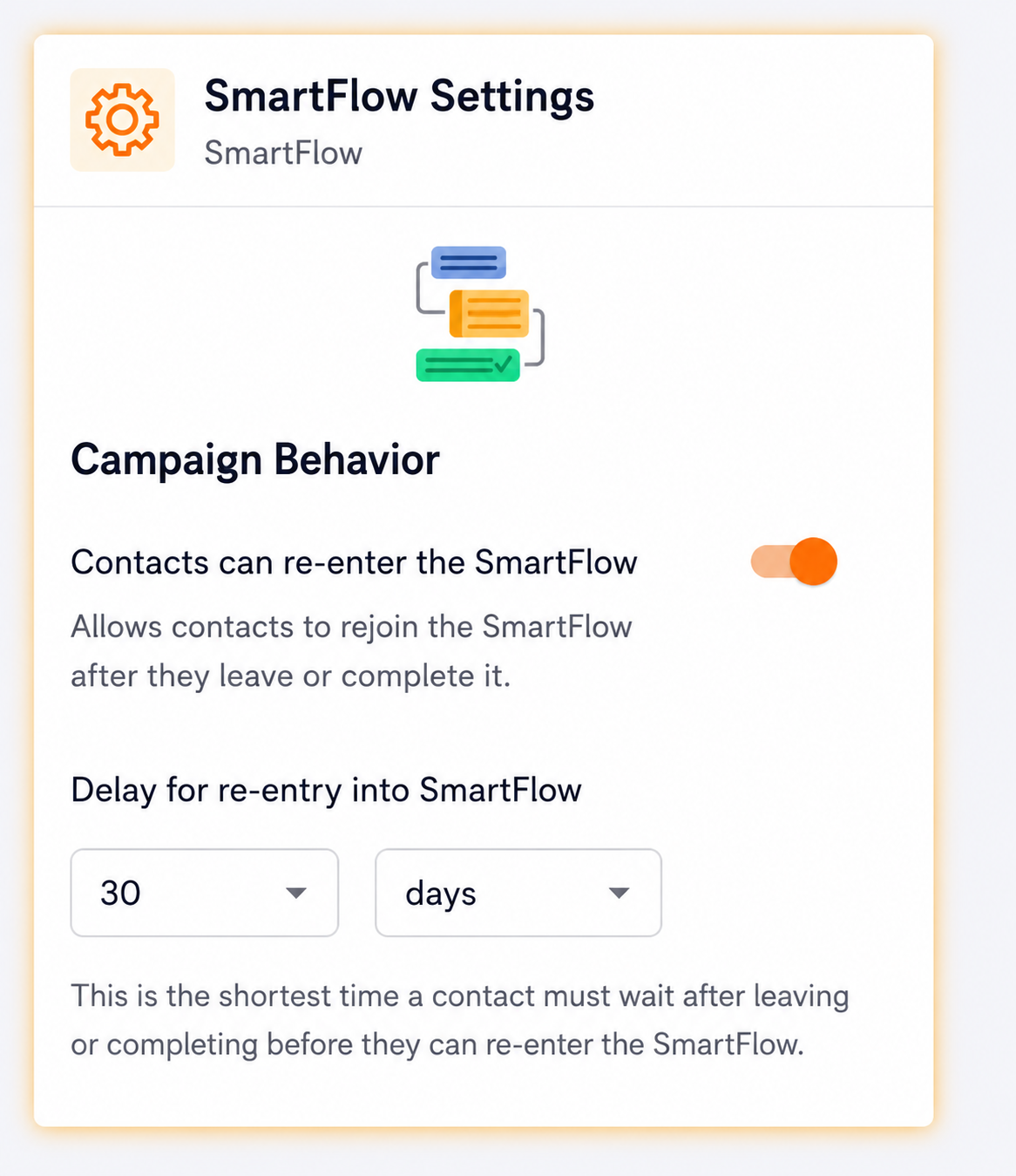
Delay for re-entering the Smartflow
Click in the empty workspace; a menu will appear where you can choose the time frame after which an email can be sent to the contacts again.