Why send A/B tests?
A/B testing replaces estimates and guesswork with real data. It lets you test different versions of an email on a small sample of recipients, then send the best-performing version to the remaining majority of your database.
What you can test
- Email subject and preheader: These directly affect how many people open your email in the first place.
- Sender name: Test whether your company name or a person’s name works better, for example, John from Company.
- Content and design: Different copy, images, offers, or the placement and colour of the call-to-action (CTA) button can affect click-through rates.
How to set up A/B testing
The original screenshots show the Czech interface. The instructions below include the corresponding Czech labels so you can follow each step.
1. Create a new campaign
In the Campaigns menu (Kampaně), click New campaigns (Nové kampaně), then New campaign (Nová kampaň).

2. Choose an empty SmartFlow and give it a name
Select Empty SmartFlow (Prázdné SmartFlow) and give it a name.
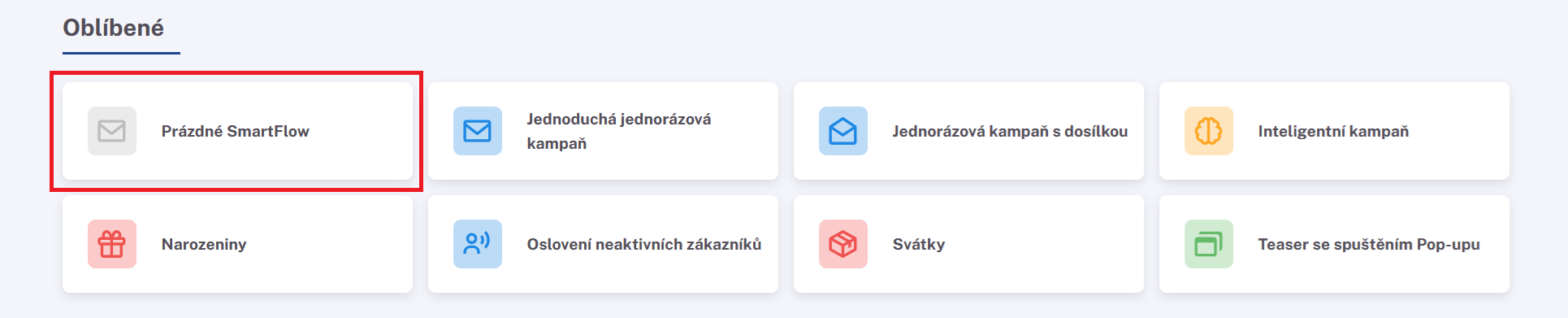
Click the pencil icon next to the SmartFlow name to edit it. For example, enter A/B test.


3. Set the scheduled start
Choose a trigger and select Scheduled start (Naplánovaný start).
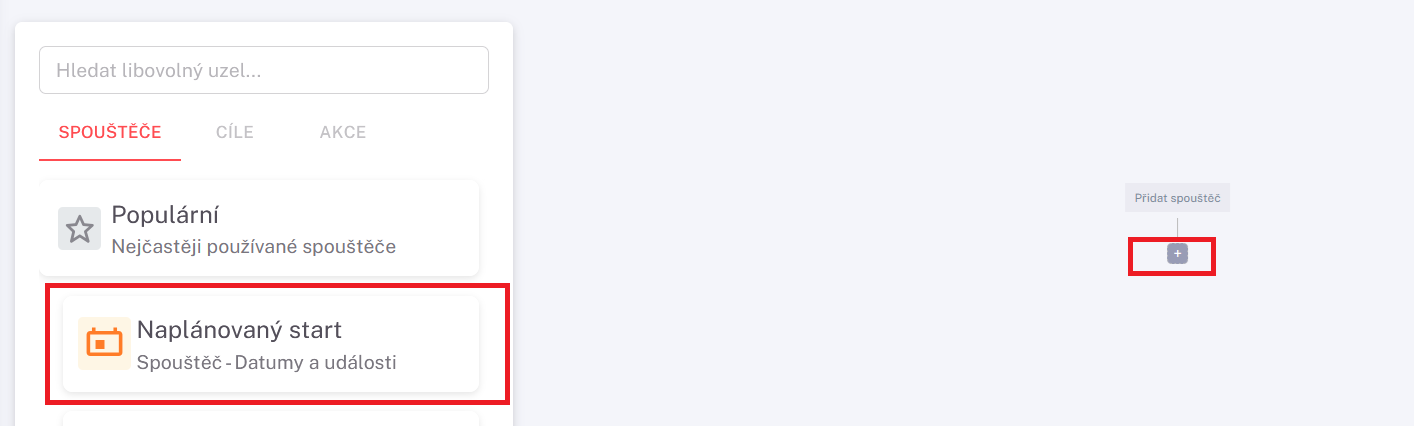
In Scheduled start, set the date when the campaign should start.
4. Select your contacts
A contact selection block is added automatically.
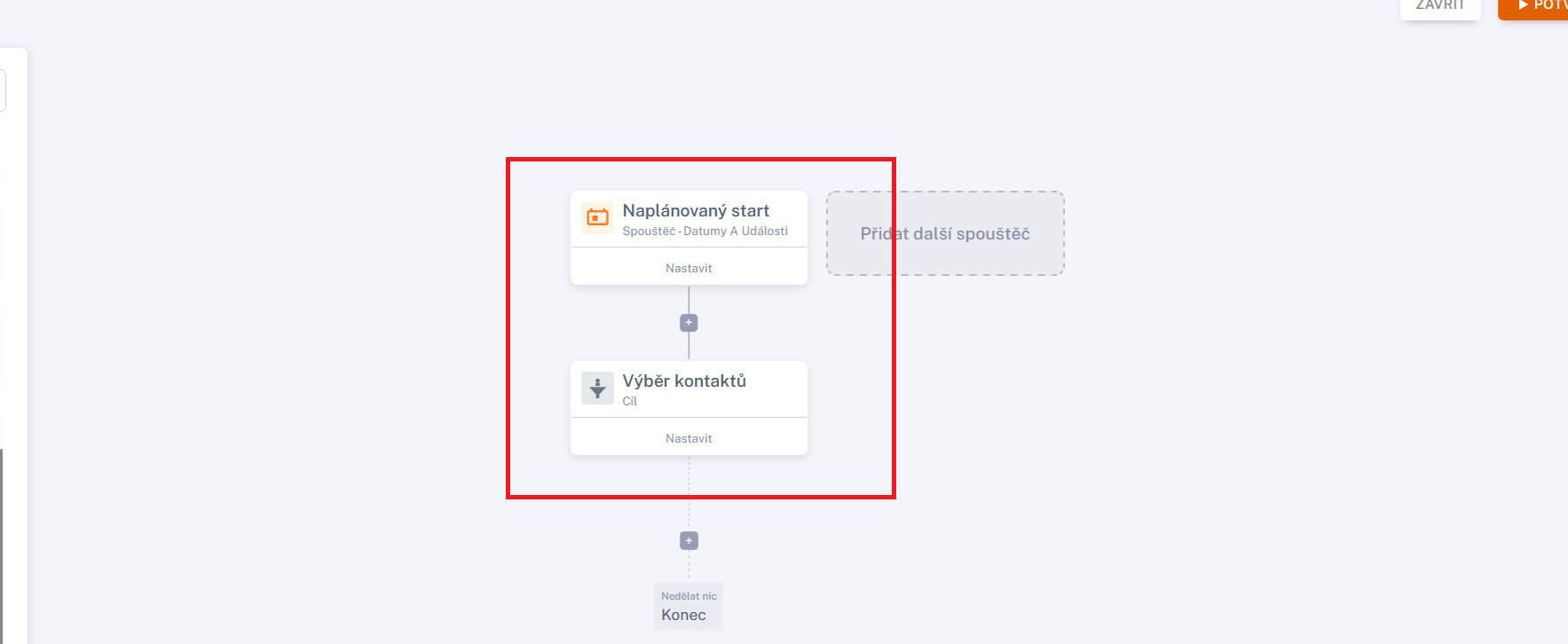
In Contact selection (Výběr kontaktů), choose the audience you want to reach.
5. Add the A/B Test with Email block
Finally, add the A/B Test with Email block (A/B test s e-mailem). You will find it under Actions (Akce).
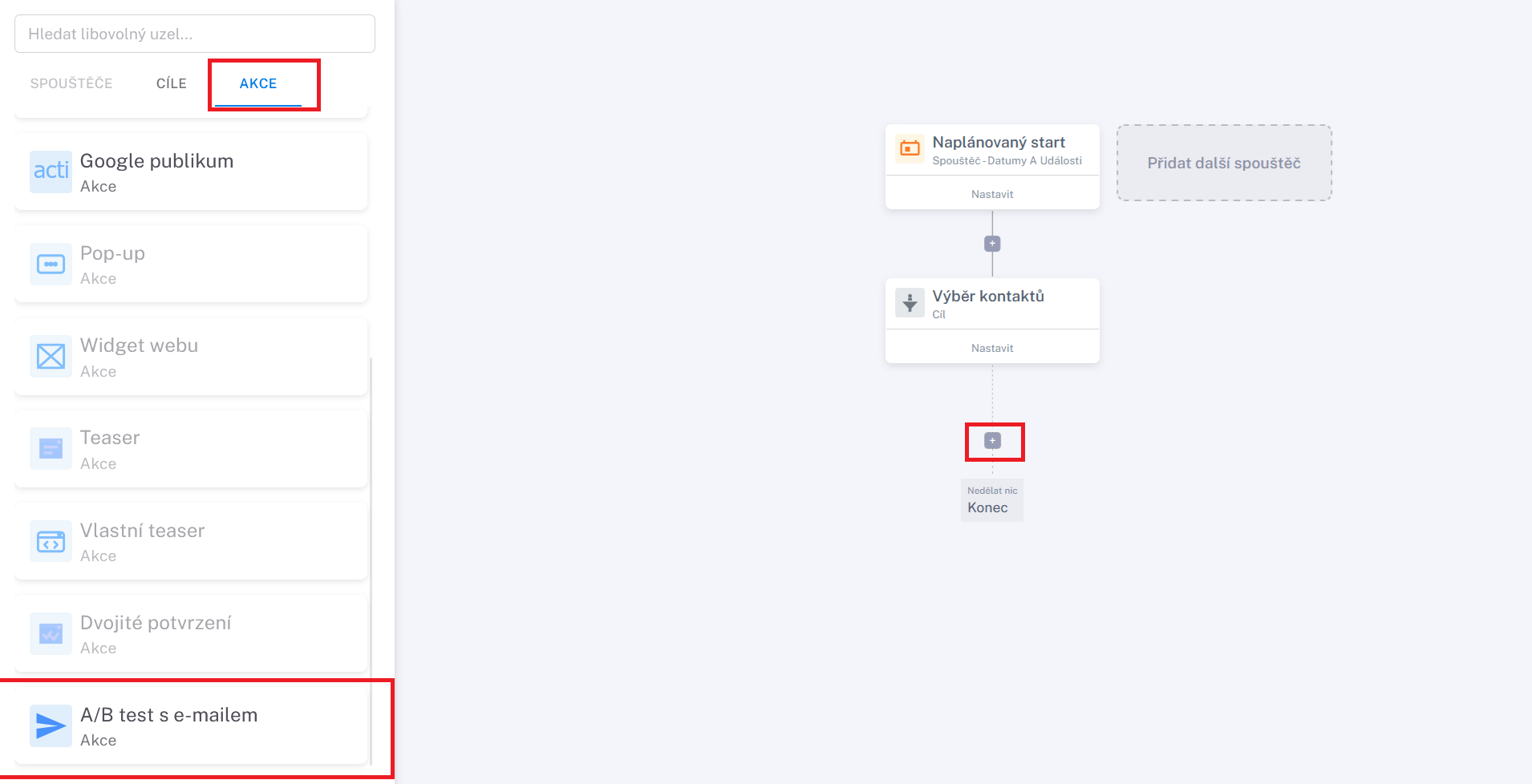
6. Configure the test group, templates and winning criterion
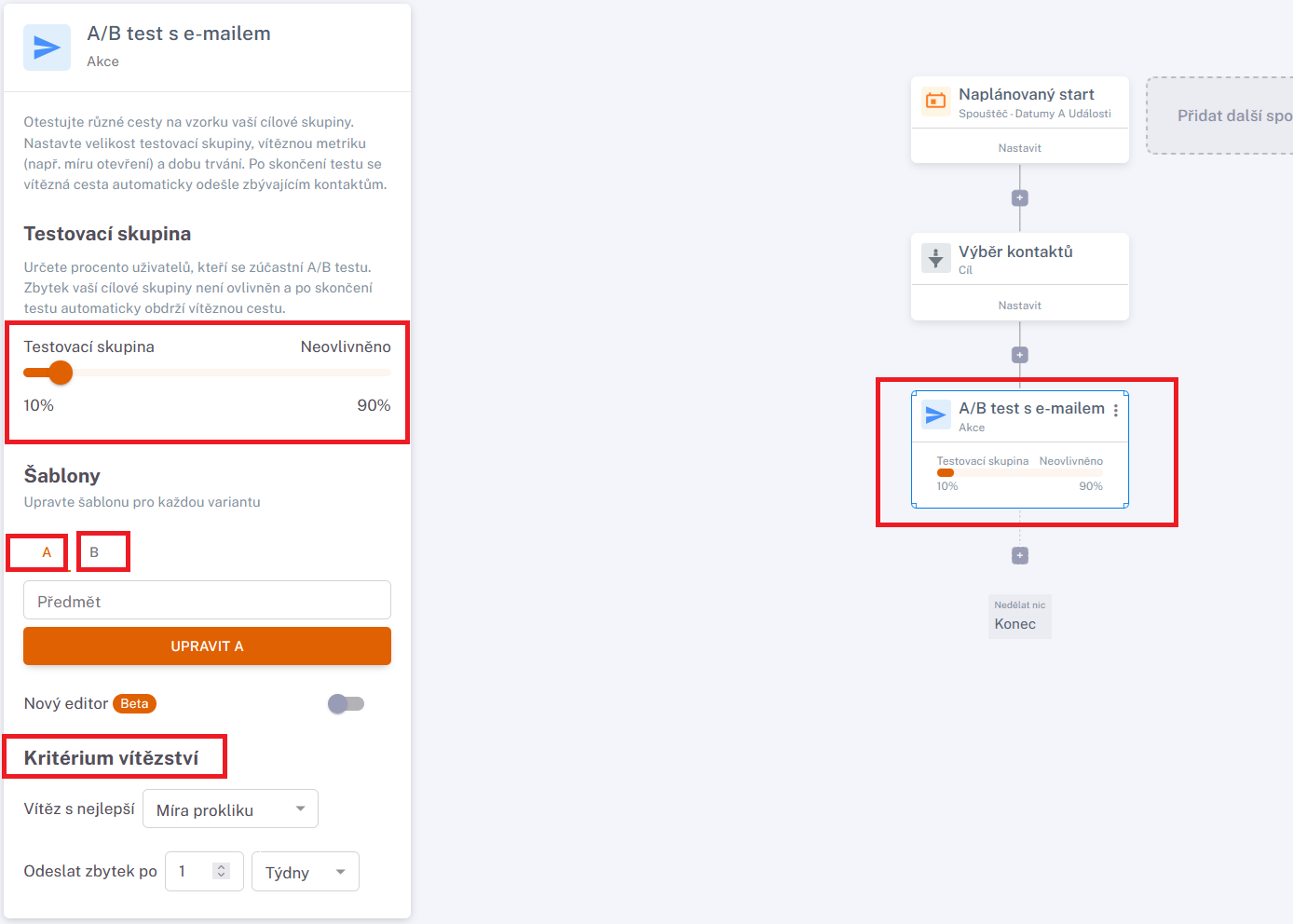
- Test group (Testovací skupina): Choose the percentage of your audience to include in the test, with a minimum of 10%.
- Templates A and B (Šablony): Add the templates for the two email variants here.
- Winning criterion (Kritérium vítězství): Choose the criterion used to evaluate the A/B test and how long to wait before sending the winning variant to the rest of your audience.
7. Confirm and schedule the campaign
Once these settings are complete, all that remains is to confirm and schedule the campaign.
